
TABLE OF CONTENTS
- How do I get PrintDeploy?
- I didn't sign in... I must've missed it?
- I don't see the green printer or a Print Deploy program anywhere!
- What is the ACADEMIC PRINT RELEASE? Where are all of the department printers?
In Fall of 2026, The Prep rolled out a new method of printing. Paper Cut Print Deploy. Print Deploy offers many benefits over the previous printing options that eliminate the need to install individual printers or visit IT to request new ones. Printers are automatically issued and removed from your device remotely based on your department. Along with the new software changes, the ACADEMIC PRINT QUEUE has been introduced in order to offer unified printing across all Academic departments, campus-wide.
How do I get PrintDeploy?
Print Deploy to all Faculty and Staff laptops automatically was pushed out to all Faculty and Staff Laptops automatically on Friday, September 25th, 2026. You may have noticed a pop up with the PaperCut Logo at some point. By signing into the box with Google using your @sjprep.org email address, you have given yourself access to all the new printers.
I didn't sign in... I must've missed it?
That's okay. If you didn't see the pop-up, or clicked out of it/closed it, you can still sign in to get your printers.
Look in the bottom right corner of your screen near the time for an up arrow ^ and click it. It should open a small menu with icons. Click on the green printer to open Print Deploy.
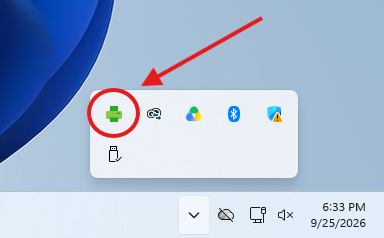
From here, you can log in with Google. If you haven't logged in yet, you will see the log-in screen below. If you have, you will see a window with all the printers you have been given access to by name.
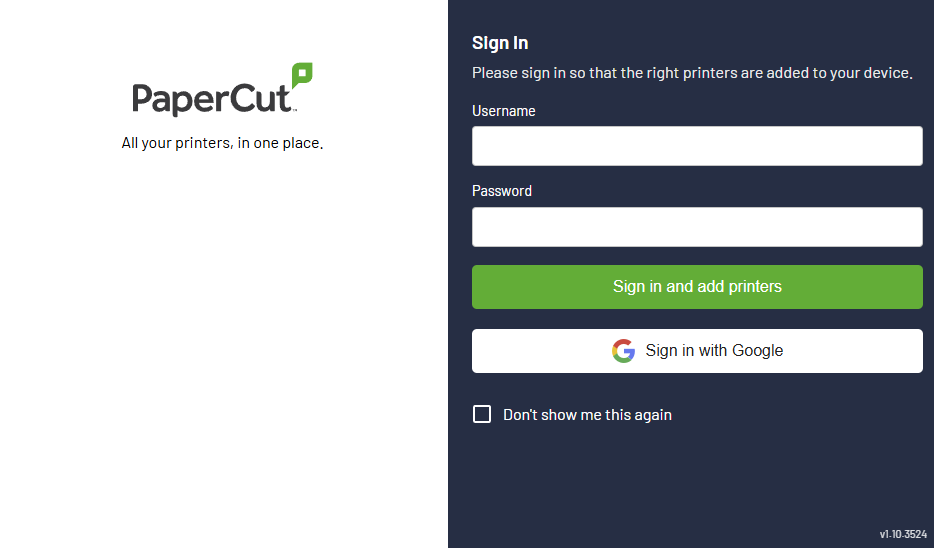
This is what the Login screen looks like. Click "Sign in with Google" to sign in with your @sjprep.org email address to add your printers immediately. You can also manually type in your full @sjprep.org email and email password into the Username and Password boxes, if you like. It works that way too.
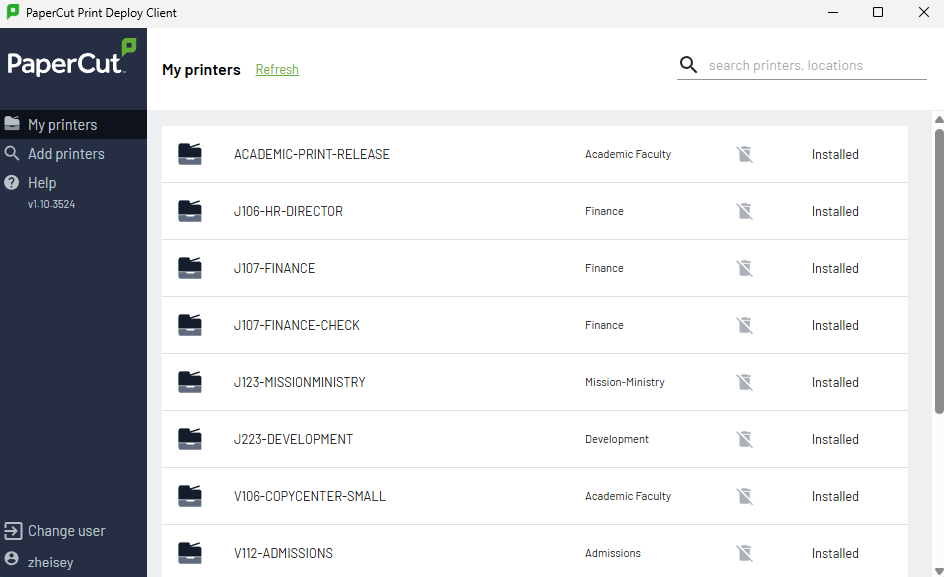
This is what the program looks like when you are all signed in. Here you will see all of the printers you have been given access to use.
I don't see the green printer or a Print Deploy program anywhere!
That's okay. You can download and install the application yourself if your computer failed to receive it automatically or ran into issues installing. You may need IT Department employee’s assistance. You or an IT member can download the Print Deploy program from the link below.
Click Here to Download Prep Print Deploy 2026
What is the ACADEMIC PRINT RELEASE? Where are all of the department printers?
All the academic department printers have been consolidated into one printer queue called ACADEMIC-PRINT-RELEASE that will send your print job to every academic copier in the building. You can walk up to any Academic printer/copier in any department, tap your badge, and choose your print job that you sent to ACADEMIC-PRINT-RELEASE.
Using this is simple, and convenient:
- Print your file or document to ACADEMIC-PRINT-RELEASE
- Walk to any printer or copier in an academic department
- Tap your Prep ID Badge at the copier
- Every job you've sent to ACADEMIC-PRINT-RELEASE will be there
- Select "Print All' to print everything you sent or click "Print Jobs" to see a list and pick which ones you want to print.
This means that you can print a file from anywhere in the building, and walk across the building, and still print it. If you send a job to the Copy Center or your department printer, only to realize it is occupied when you get there, simply go to a different academic printer that is available and release your job at that printer.
The Following Printers are Available to Print from with ACADEMIC PRINT RELEASE:
- V106 Copy Center Large
- V106 Copy Center Small
- V215 Villager 2F (Modern Language Office)
- V306A Villager 3F (Biology Prep Office, Science)
- J308 Jesuit 3F (Campbell Faculty Room)
- J404 Jesuit 4F (Ayd-McGinty Faculty Room)
- J503 Jesuit 5F (Zeller Faculty Room)
For any questions, please reach out to the IT Department.